Configuring Forms Based Authentication in SharePoint 2013 – Part 4 – Configuring SharePoint
Configuring forms based authentication (FBA) in SharePoint 2013 is very similar to SharePoint 2010, but there are some differences due to SharePoint 2013 using .Net 4.0. The web.config entries entries are slightly different. As well, IIS doesn’t support editing .Net 4.0 membership provider configuration through the IIS interface, so all of the configuration has to be done directly in the .config files. I’ll go through all of the steps required to setup FBA for SharePoint 2013, from start to finish. I’ve broken down the steps into 4 sections:
Part 1 – Creating the Membership Database
Part 2 – Adding Users to the Membership Database
Part 3 – Editing the Web.Config Files
Part 4 – Configuring SharePoint
Now that the membership and role provider have been configured, we can configure SharePoint to use them. For this example i’m going to create a new SharePoint web application. The same settings can be applied to an existing web application through the Authentication Providers dialog.
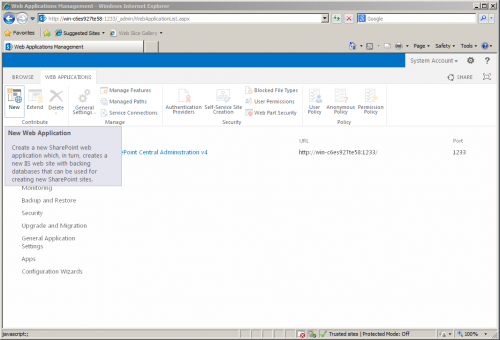
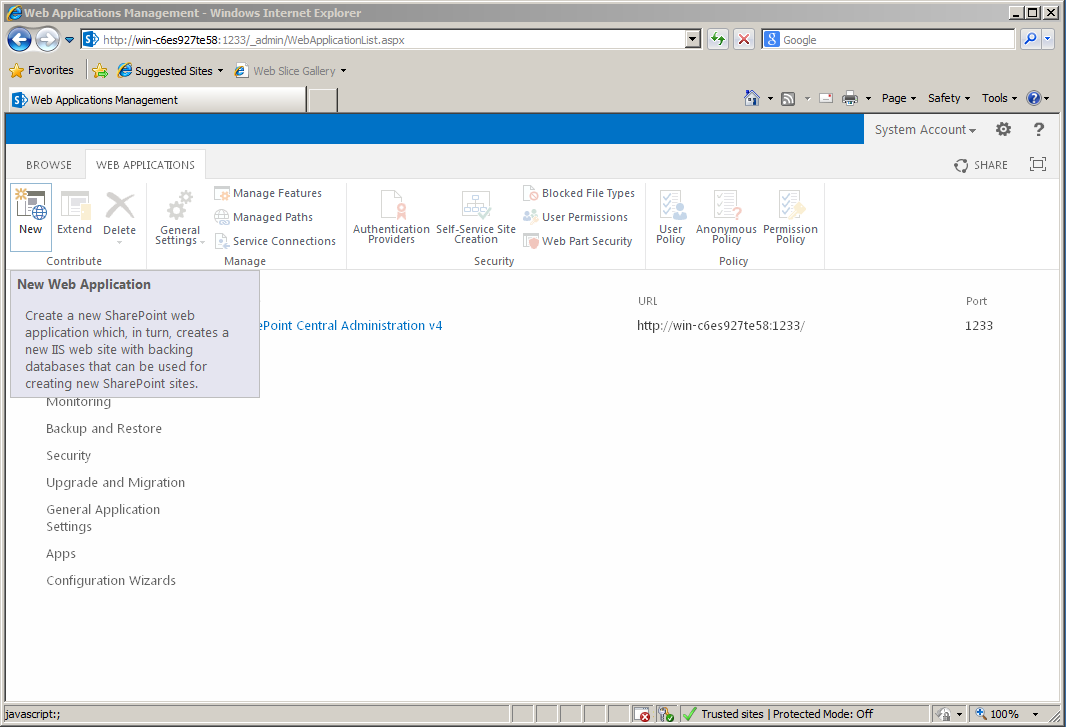
- Open SharePoint Central Administration -> Application Management -> Manage Web Applications.
- Click “New” to create a new Web Application.
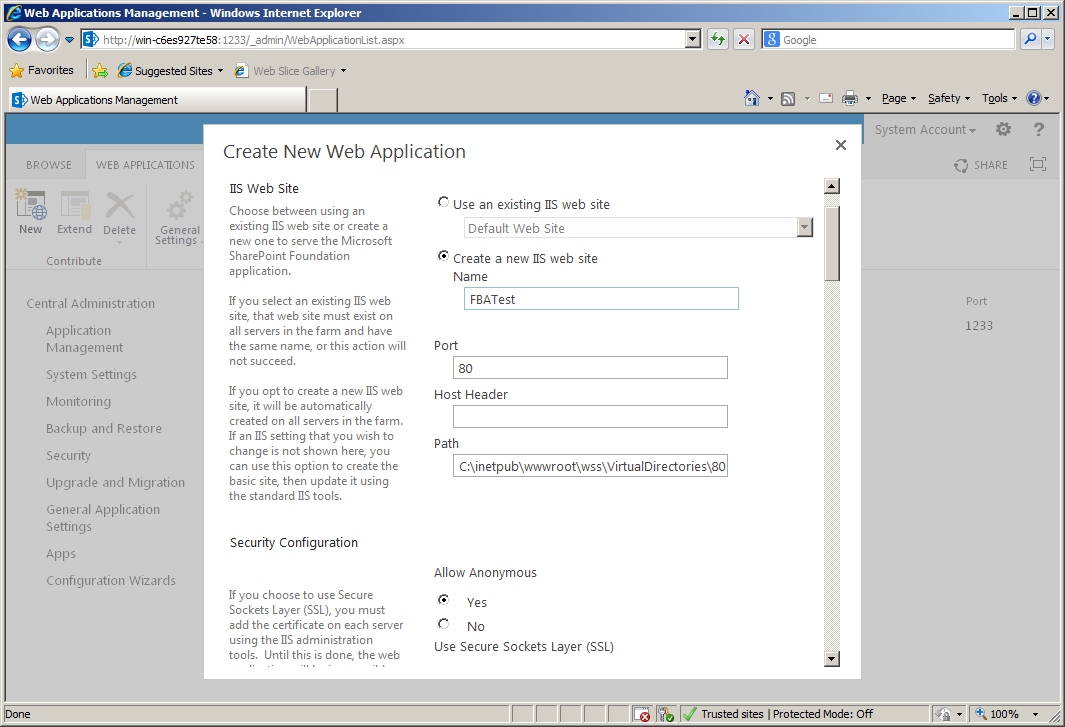
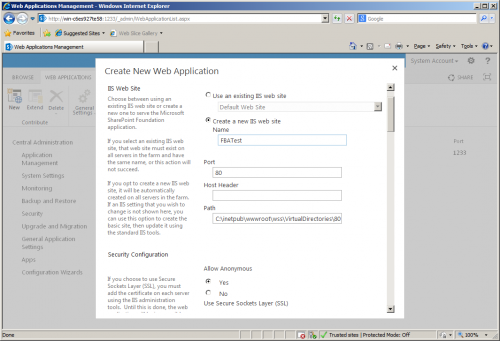
- Name the web application and adjust any other options to your preferences.
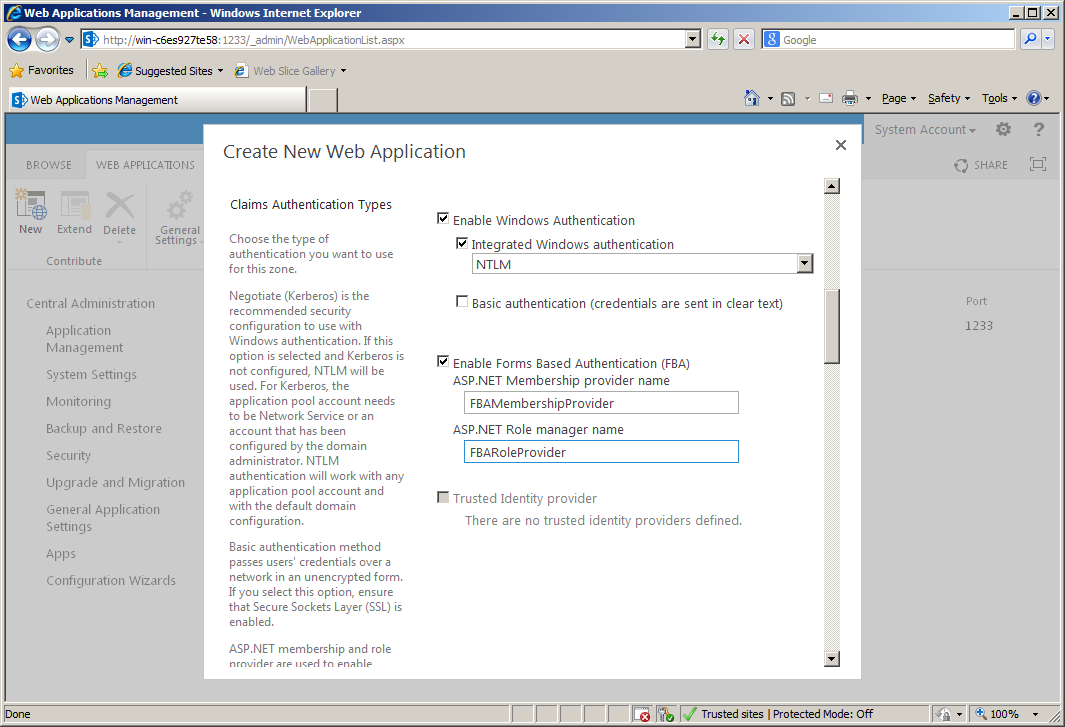
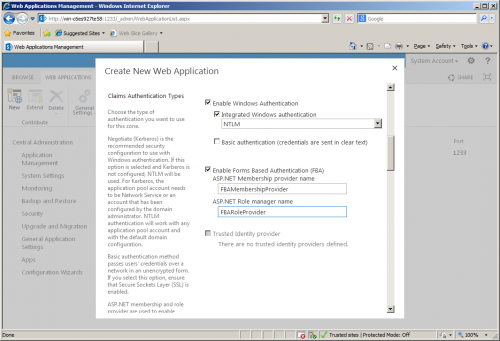
- Check “Enable Forms Based Authentication (FBA)”. Enter the ASP.Net Membership Provider Name and ASP.NET Role Provider Name that you configured in the web.config. For this example we used “FBAMembershipProvider” and “FBARoleProvider” (Without the quotation marks).Also, for this example we left “Enable Windows Authentication” checked. This allows us to login either via Windows Authentication or Forms Based Authentication (SharePoint will prompt you when you login for which method you’d like to use).Click OK.
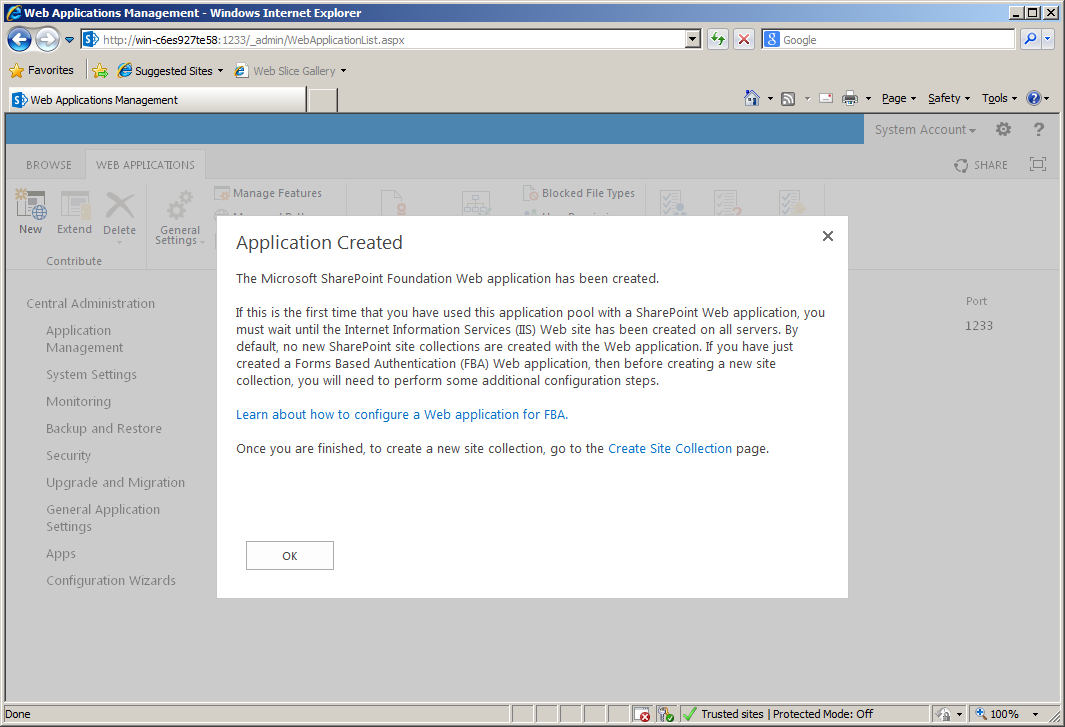
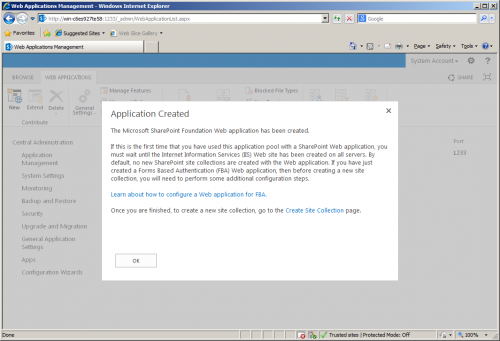
- An Application Created dialog will appear. Click the “Create Site Collection” link to create the first site collection for this web application.
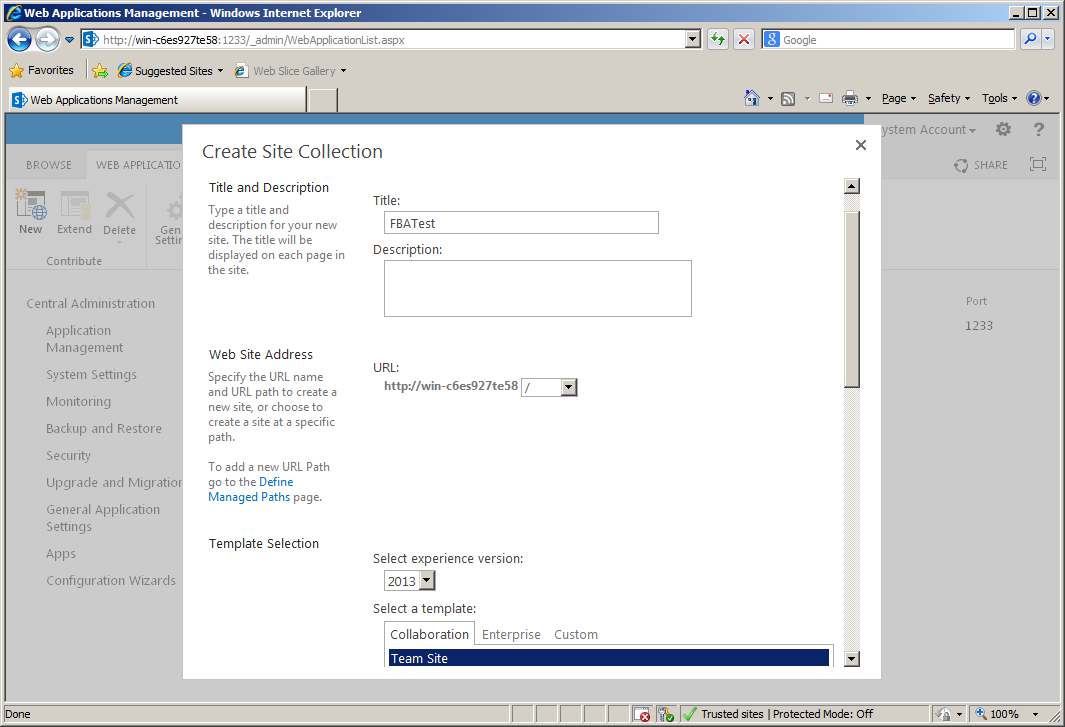
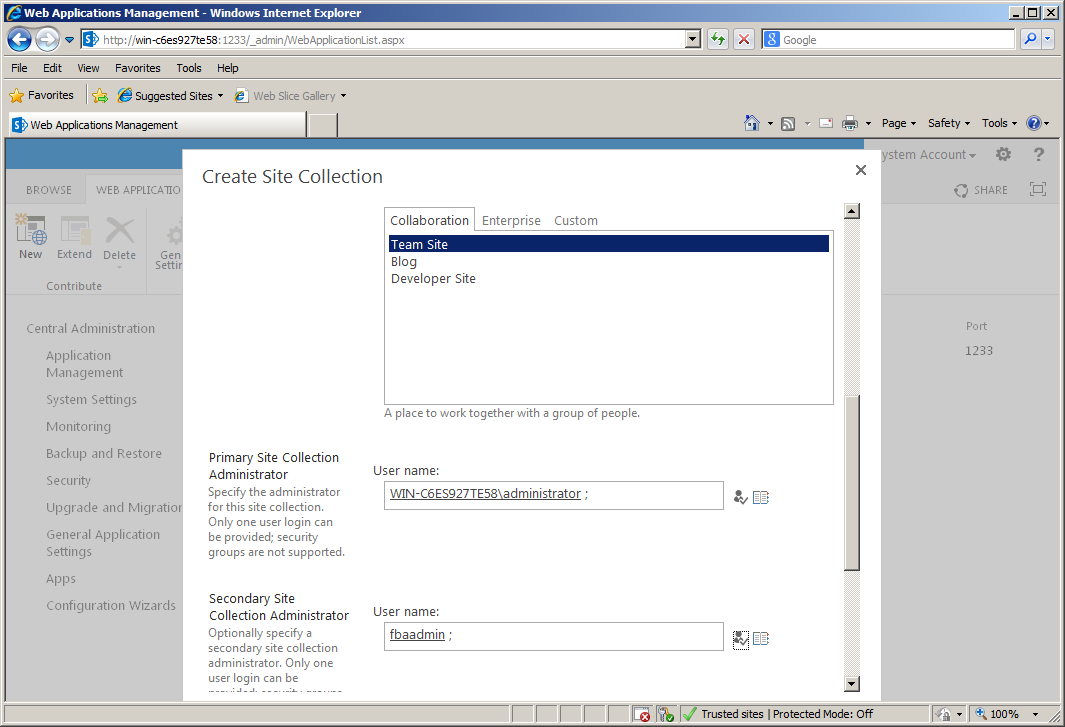
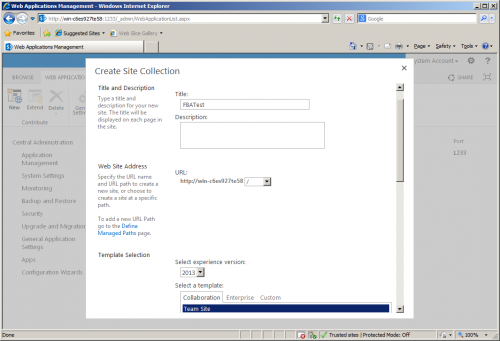
- From the Create Site Collection dialog, give the site collection a name and URL and select a template.
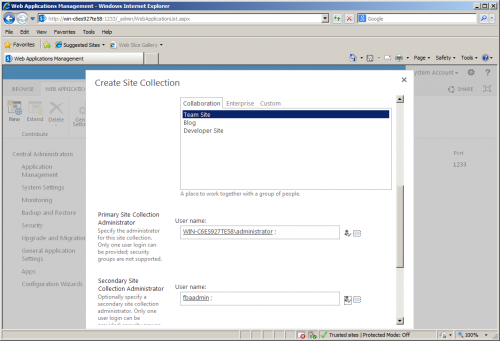
- For the Primary Site Collection administrator, i’ve left it as my Windows administrator account, so that I can login without FBA. For the Secondary Site Collection Administrator i’ve set it to ‘fbaadmin’ – the FBA account we setup in Part 2 (If you skipped Part 2 because you’re using the SharePoint 2013 FBA Pack, then you can just leave this blank for now and use your domain account to login to SharePoint and create your FBA users). You can set these to whatever is appropriate for your setup. Click OK.
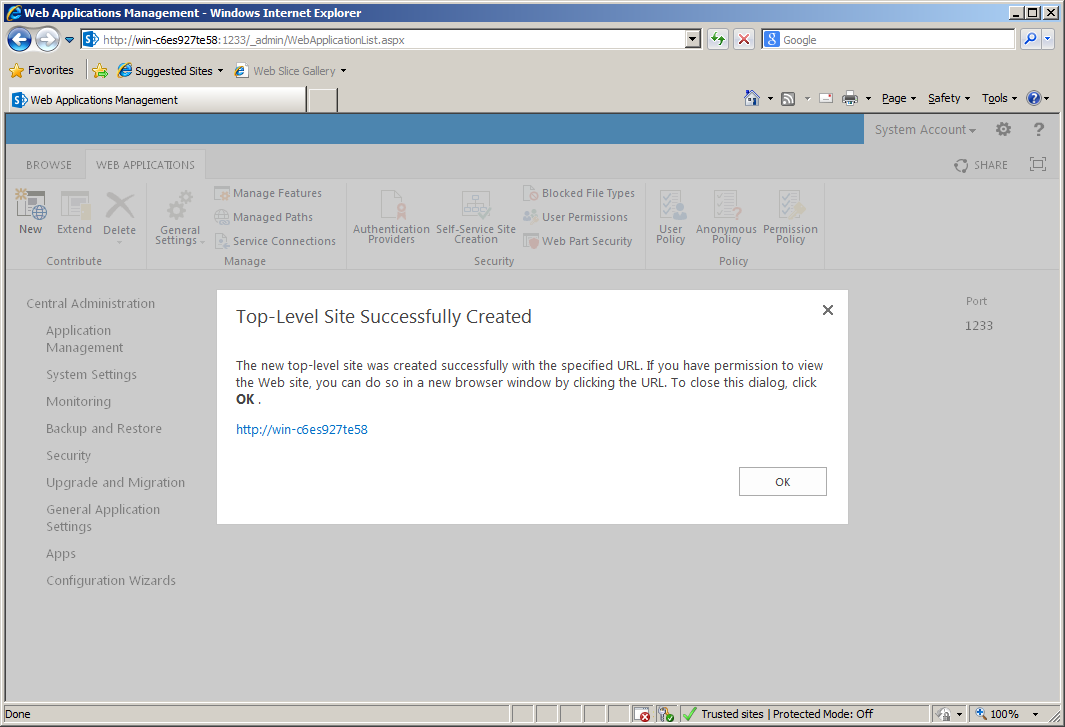
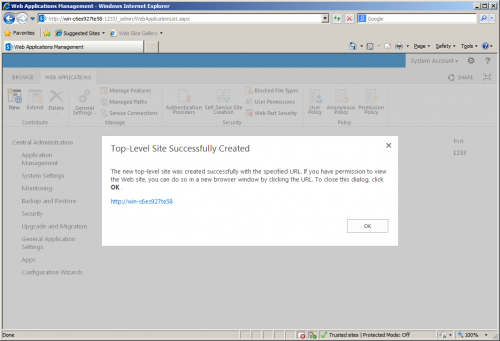
- You’ll get the “Top-Level Site Successfully Created” dialog. You can click on the URL to visit the new site collection you just created.
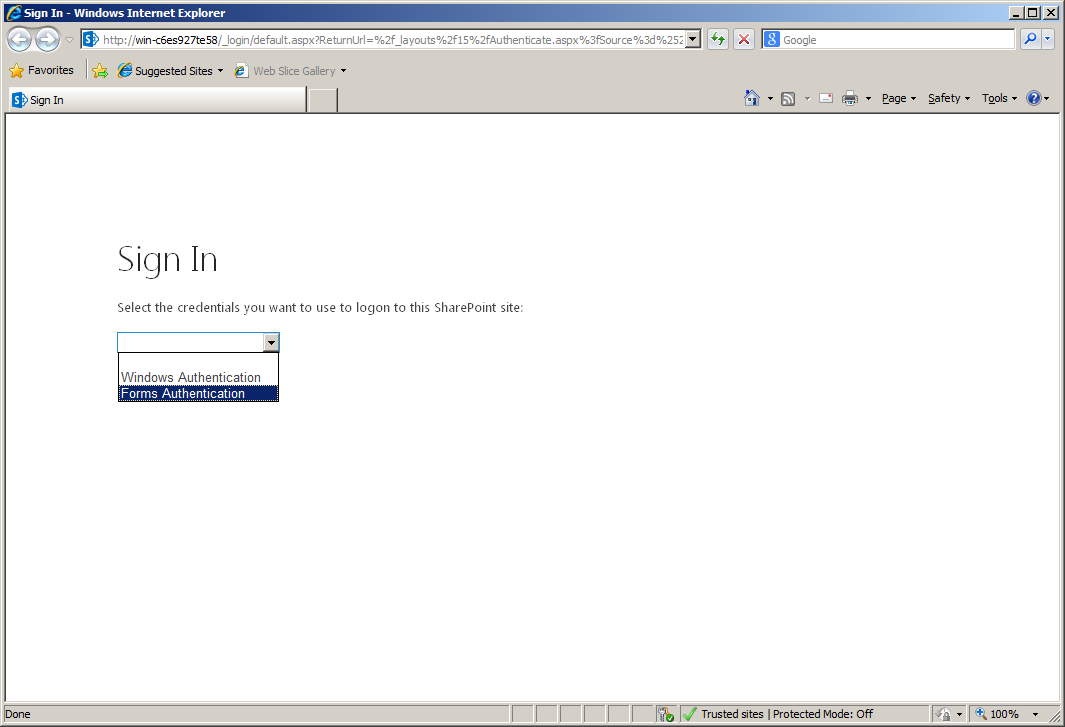
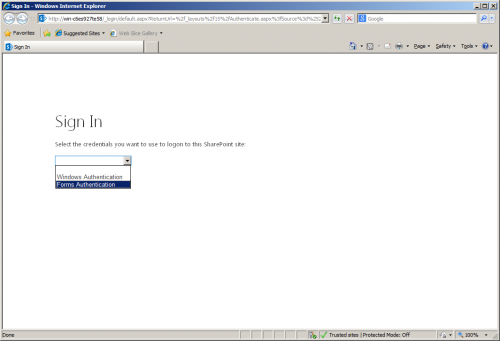
- When authenticating to the site collection, if you enabled both Windows Authentication and Forms Based Authentication, you’ll be prompted for which method you’d like to use to authenticate. I’m going to choose to authenticate with Forms Authentication.
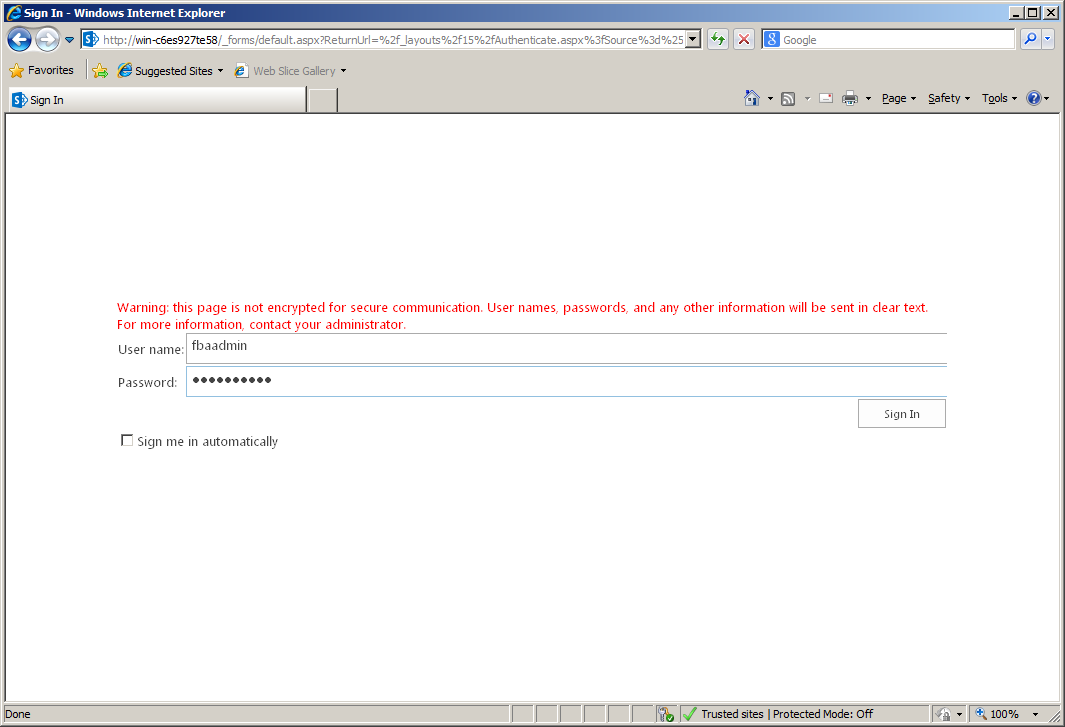
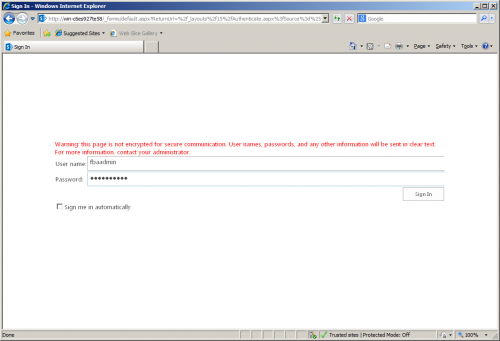
- You’ll be prompted for a username and password. Enter the username and password that we created in Part 2, and also set as the Secondary Site Collection Administrator.
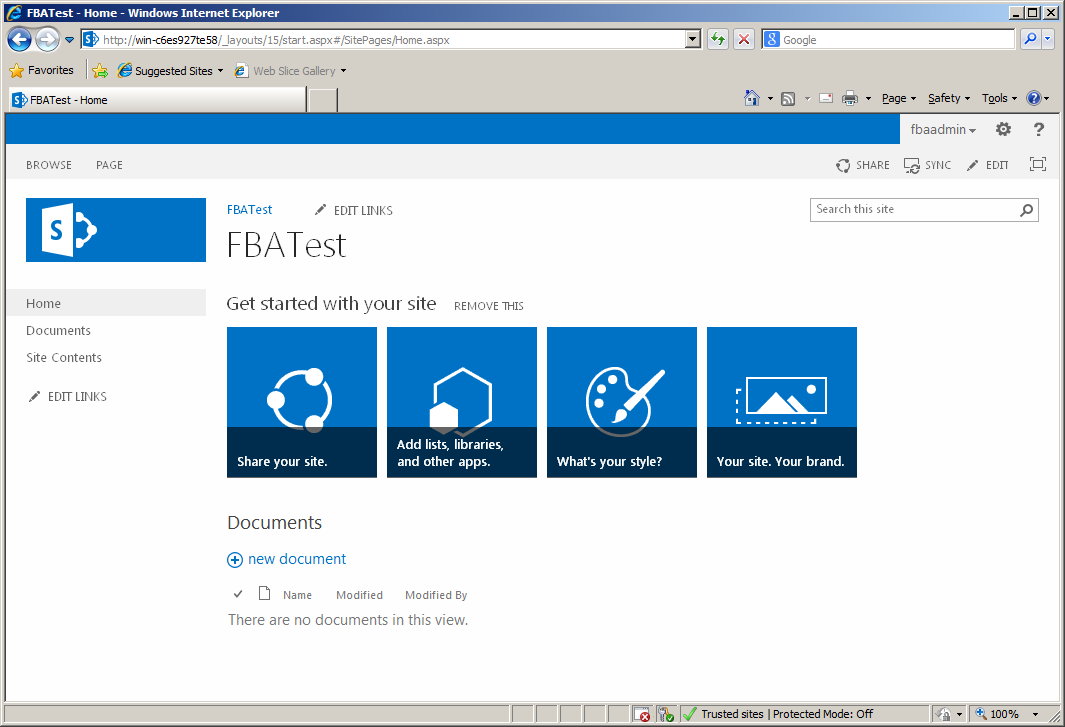
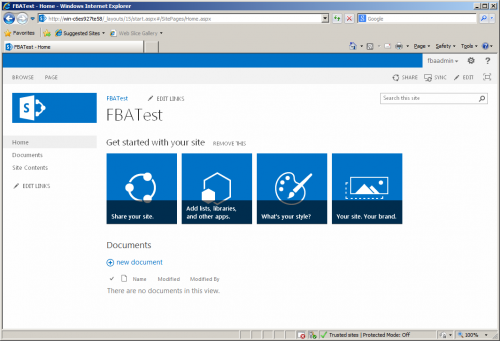
- You’re now logged into the site as a site collection administrator.
That’s it! Now you can authenticate to the site with Forms Based Authentication. You can also create and edit users using the methods discussed in Part 2. Be sure to check out the SharePoint 2013 FBA Pack, which will allow you to manage your forms based users directly within SharePoint, as well as provide methods for users to register, change their password and recover their password.
Subscribe
Follow on Twitter 

Hi,
I found your blog really great and extremely helpful. But I have a small problem when I add new users via ISS my site collection can’t find them, but CA does show then. For example I can add the FBA users as a site collection administrator and works correctly but other users won’t show if I try to share the site or and then to a group. Can you point me in a direction?
regards,
Benito
Did you update the machine.config like in the example, or did you update each web.config individually? I’m guessing that there’s an issue with the .config entries for the web application you’re having issues with (either the machine.config entries didn’t inherit properly, or there’s a problem with the entries if you added them directly).
Used machine.config. How can I check if the inherits is working ?
Before it was really easy, because the providers tab in IIS would show you in 2.0. With 4.0 there’s no easy way to verify that I know of. I would just check the web.config for the web application and see what the ‘membership’ section looks like. I would expect to only see a default SharePoint membership provider. If there’s a membership provider with the same name as the one in the machine.config, or a ‘clear’ directive that could be your problem. Same goes for the ‘ConnectionStrings’ and ‘RoleManager’ sections – make sure there’s no ‘Clear’ directive or matching entries from your machine.config. If that all looks good, maybe try adding the entries directly to the web application web.config just to see if that gets it to work.
Hello
What happeds with PeoplePicker?
you use machine.config or web.config of each site?
how did you separate users from different sites? use applilcationname=’/'? use peoplePicker?
Thanks
I don’t change any settings for the PeoplePicker. With the default settings, when you are in any sites belonging to the configured web application, it will show all FBA users for the configured membership provider.
To separate users for different sites:
If you want COMPLETELY separate users, I do it at the Web Application level, and create an additional membership entry in the machine.config/STS web.config. I either use applicationname to separate it, or point it to a separate membership database.
Alternatively you can follow the Active Directory model:
All users are available on all sites/web applications. You simply define the permissions for which users can access the site.
Hi Chris,
Great guide mate and thanks for the 2013 FBA Pack it’s just what I’ve been looking for. I have one question for you. Having enabled FBA and NTML on my default site, to allow people picker on that zone, I want to force all users to authenticate via ntlm. I tried using custom signin page /_windows/default.aspx via central management but it throws a runtime error. Is there any way around this without having to create a custom login page in visual studio?
Thanks
So for this zone you only want to connect via NTLM, but you want FBA enabled so that FBA users come up in the People Picker? If that’s the case i’d probably try just setting the default site to NTLM only and having a second zone setup with FBA. I sort of think that the FBA users would still show up in People Picker in that instance (as they do show up in the people picker in central admin, which doesn’t have it’s own configuration for FBA). The one thing you might have to do is make sure the membership provider is setup in the default site web config (or in the machine.config).
If you really want to login with /_windows/default.aspx – I think you may be out of luck without a custom login page. The problem is that it takes a couple of parameters for which page to redirect to (You can see this with Fiddler using the default login page for an FBA + NTLM site).
So this won’t work:
/_windows/default.aspx
But this will:
/_windows/default.aspx?ReturnUrl=%2f_layouts%2fAuthenticate.aspx%3fSource%3d%252F&Source=%2F
You can try putting the parameters in the custom signin page (if it even allows it), but I don’t think it will work as it will always redirect to the root, instead of the resource you’re trying to access.
Chris,
Thanks for the great guide. What I was curious of is what if we want to use a custom FBA provider? Do you know of any walkthroughs for 2013? I found some stuff for 2010 but not much yet on doing it for 2013. Any help would be appreciated. Thanks!
Joe..
Using a custom FBA provider will be the same for 2013 as it is for 2010. The only real difference is that the custom provider will have to be built with .Net 4.0.
I use the user which create in the IIS to login spsite,but can not login, it show: “sorry, this site hasn’t been shared with you.” all the account I create havn’t the right to access the spsite. why?
You have to assign permissions to the user before they can login. Usually I assign a user as a site collection administrator (see the example above) so that that user can login. Then I login to the site with that user and assign permissions to the other users.
I can use the created user to login the spsite now,I forget to add the users as a member of spsite(visitor,owner,or others). by the way, why can not handle user’s password changing under the freamwork 4.0 in iis, it auto generate a password when click change password button.
Great series. Very helpful. Any idea how to get Visual Studio to be able to deploy reports to a Report Library.. When I try it now, I get asked for credentials, but none seem to work.
I’ve followed your tutorial and setup my environment just like yours. When trying to reach the FBA login site, I can choose from FBA/Windows auth like I’m supposed to, however, when logging in I get this error:
‘File Not Found’.
Server 2012 Datacenter edition & Sharepoint 2013 Enterprise edition.
Any advice?
When do you get File Not Found? After selecting FBA or Windows Auth? If you select FBA do you at least get the FBA login page? If you select Windows Auth, does it log you in? If you get it right after making any selection, then maybe the web application creation didn’t complete properly – try creating a new web application. Maybe try creating it just for Windows Authentication first, making sure that works, and then adding on the forms based authentication.
I get the error when going to the site and trying to log in. I get the FBA/windows auth login page, I can fill in one of the users stored in the dummy site and when trying to log in i get the error. Windows auth doesn’t work either.
I’ve tried making a new site/new site collection, but unfortunately that didn’t work either.
Did you try creating a new web application, and add a new site collection to it? Make it just use windows authentication. If even that doesn’t work, and you still get the File Not Found error, then i’d say there’s something wrong with your current installation of SharePoint.
You can try running the Product Configuration Wizard again, and see if that corrects your issues. If not though, try a clean installation – maybe even in a new environment such as a virtual machine.
A new web application with new site collection(s) works fine. I tried rebuilding the FBA environment again, but still no luck unfortunately..
So does just windows authentication work on the new web application and site collection? Have you tried setting up FBA on it?